
 Español
History and invoices
Token history
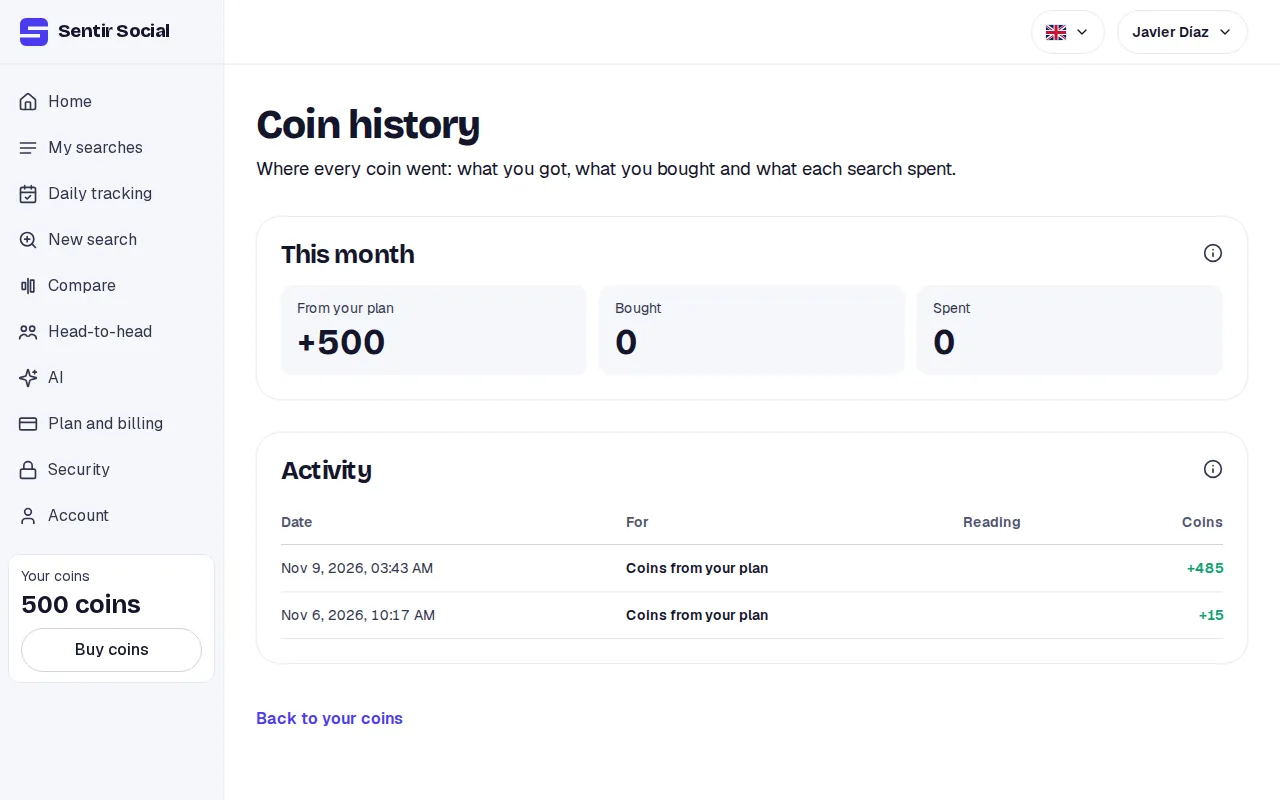
Section titled “Token history”Open Buy tokens and click See history. If you are a member or a viewer in a shared account, the See history link is in your area’s menu, under Your tokens. The page has two parts.
This month: what came into and went out of your balance since the 1st: from your plan, bought and spent.
If you are a member or a viewer in a shared account, This month says From the account’s plan, Bought for the account and Spent by you: what came in belongs to the whole account and the spending is only yours. Under Activity you see what came into the account and your own spending, and the monthly tokens say Tokens from the account’s plan. The owner and admins see everyone’s spending.
Activity, newest first. Each row says:
| For | What it means |
|---|---|
| Tokens from your plan | The month’s tokens |
| Token purchase | A paid pack |
| Purchase refund | A refunded pack; it takes its tokens back |
| Support adjustment | A change made by our team |
| A search | What it read and what it charged, with the hold and what came back |
| A tracking day | The same, for that day |
| A comparison | The flat cost |
A running search shows its hold. A search that failed or was cancelled before it started says all tokens were given back. A deleted search stays in the list, marked as deleted.
Invoices
Section titled “Invoices”Open Plan and billing. Your invoices are at the end of the page, under Invoices (in a shared account only the owner sees them): date, amount, state (Paid, Pending, Refunded, Partly refunded or Void) and the View and PDF buttons. Past 20, the rest are in the billing portal.
Manage billing
Section titled “Manage billing”The Manage billing button opens Stripe’s portal. There you can:
-
Change the card.
-
Switch plan or period.
-
Cancel the subscription. You can also do it with the Cancel subscription link on Plan and billing.
-
Download every invoice.
The button appears once you have a subscription or at least one invoice. On the Free plan with no purchases there is no portal yet.