
 Español
Permissions and consent
The first time an AI connects, Sentir opens the permission screen in your browser. There you decide what that AI may do with your account.
The permission screen
Section titled “The permission screen”It says which application asks for access and which account it will connect to: the one you have open in Sentir. It offers three things:
| Permission | What it allows | Can be removed |
|---|---|---|
| Read your searches, reports and comparisons | See what already exists in your account | No: it is always included |
| Start searches and comparisons from this AI | Spend tokens: searches, daily trackings and comparisons | Yes: untick the box |
| Tokens at most per search | The cap no search asked from that AI goes over. It starts at your account’s cap; from 1 to 1,000 | Required |
If you are a viewer in that account, the start searches box is disabled, with the note “As a viewer in this account, this AI can only read.”
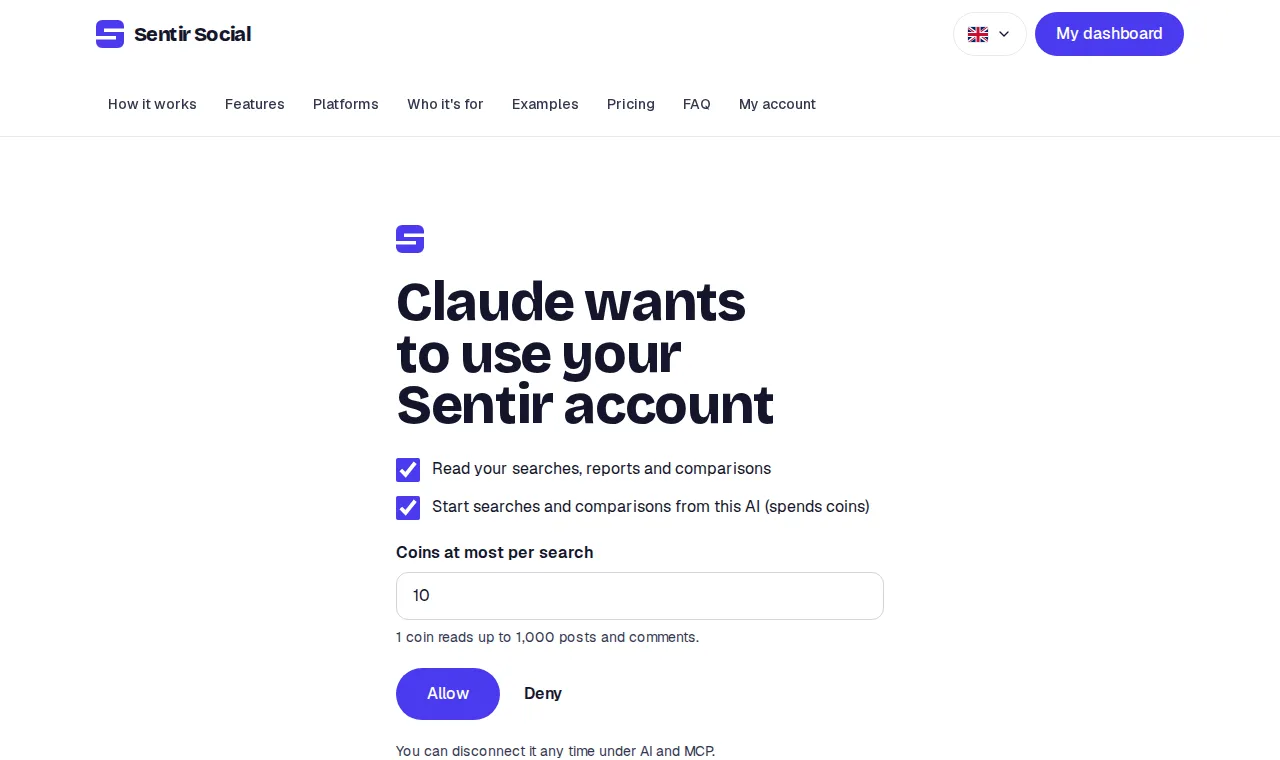
Click Allow to connect or Deny not to. If you deny, the AI gets a notice and nothing changes in your account.
-
When you allow, Sentir sends you back to the AI. You see “Back to your AI”: the AI should confirm the connection and you can close the tab.
-
If a few seconds pass and you are still on Sentir, “Still here?” appears. It means the AI stopped waiting for the answer. Go back to the AI, start the connection again and allow once more.
-
A permission request lasts 10 minutes. If you take longer, the page says it expired: go back to the AI and try again.
Connected apps
Section titled “Connected apps”On the AI & MCP tab, the Connected apps card lists every AI you allowed in the open account: its name, what it may do (“reading” or “reading and searches, up to N tokens”), when it connected and when it was last used.

Change what you allow
Section titled “Change what you allow”Connect the same AI again and go through the permission screen once more. What you choose replaces the previous choice: no second connection is created.
One account at a time
Section titled “One account at a time”A connection belongs to you in one account only and does only what your role there allows. Sentir checks it on every call.
Each AI keeps one connection to Sentir, so it works in one account at a time. To use it in another, open that account in Sentir and connect it again. The connection moves to that account.
If you are removed from an account, the connection for that account stops working. More in Users & permissions.
Disconnect
Section titled “Disconnect”-
Open AI & MCP and find the AI under Connected apps.
-
Click Disconnect and confirm.
-
That AI stops being able to use your account right away. To use it again, connect it again from the AI itself.
What the connection keeps
Section titled “What the connection keeps”- The AI keeps a sign-in that lasts 1 hour and renews itself while the connection exists. The renewal lasts 30 days: if you don’t use the AI for 30 days, it asks you to sign in again.
- Sentir keeps only a fingerprint of each sign-in, never the sign-in in clear.
- Every search started from an AI shows in your token history like any other.