
 Español
Share
A finished report is shared with a link. Whoever opens it sees the report without an account.
Creating the link
Section titled “Creating the link”-
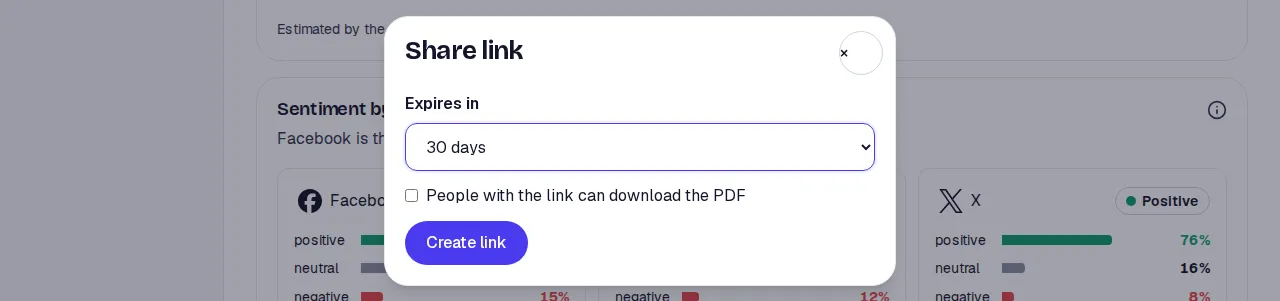
In the report’s header press Share. Share link opens.
-
Under Expires in pick 1, 7, 30 or 90 days, or Never. 30 days comes preset.
-
Tick People with the link can download the PDF if you want to allow it.
-
Press Create link.
The link appears with a Copy button. Below it says when it expires and how many views it has.
What the other person sees
Section titled “What the other person sees”- The full report with all its tabs, marked Shared report.
- The posts and comments lists, without the author filter on comments and without the accounts card.
- Download with the PDF, only if you allowed it. Never CSV or Excel.
A view is counted the first time someone opens the link. Moving between tabs or filtering the list does not add views.
Stopping
Section titled “Stopping”Open Share again and press Stop sharing. The link stops working at once: whoever opens it sees This link no longer works. You can create another whenever you want.
Limits
Section titled “Limits”- There is one link per search. To change the expiry or the download permission, stop sharing and create a new one.
- If the link expired or you stopped it, the other person sees that it no longer works, with no further detail.
- A head-to-head is shared from its topic A’s link: whoever opens it sees the head-to-head and that topic’s report. Daily head-to-heads cannot be shared.
- A comparison of two searches has its own link and shows only the comparison, without the full reports or the posts, and without downloads. See Compare two searches.