
 Español
Access keys for scripts
Your AI signs in by itself, with no access key. An access key is for what has no browser: a script, a scheduled job or a CI flow that talks to the MCP server.
When to use one
Section titled “When to use one”- A script that downloads your reports every morning.
- A CI job that starts a search when a campaign ends.
- Any MCP client that takes an address and a header, but no sign-in.
If it is one of the AIs on the tab, don’t create an access key: connect it.
Create an access key
Section titled “Create an access key”-
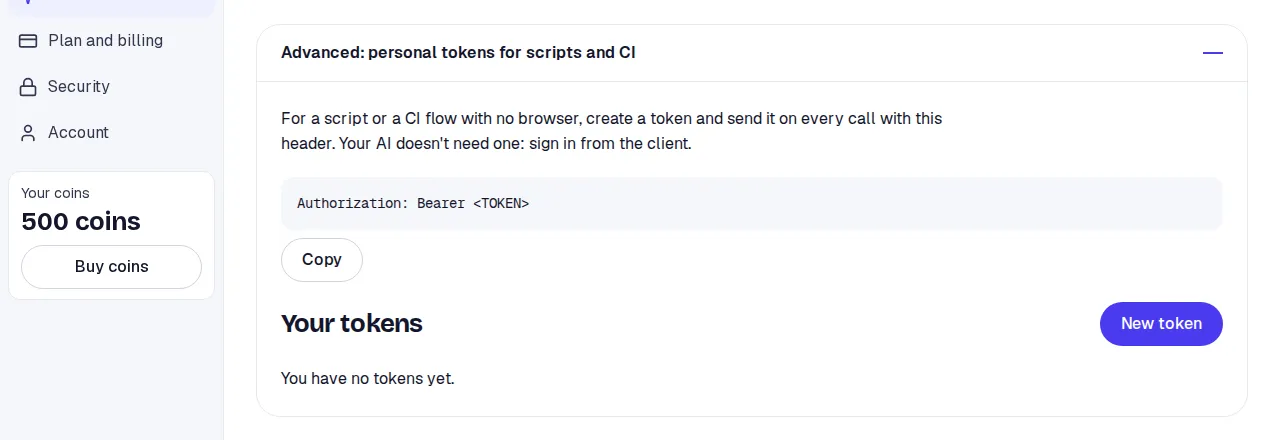
Open AI & MCP and unfold Advanced: access keys for scripts and CI, at the end of the page.
-
Click New access key. Give it a name to tell it apart in the list.
-
Tick Can start searches only if the script must spend tokens. Without the tick, the key only reads.
-
Set Max tokens per call (1 to 1,000). A search asked with that key never spends more.
-
Click Create access key and copy it. It is shown only once. Keep it where you keep your secrets, never in the code.
Which account it works in
Section titled “Which account it works in”- An access key belongs to you in one account only: the one you had open when you made it. The AI & MCP tab names that account.
- The key does only what your role in that account allows. Sentir checks it on every call.
- If you are a viewer in the account, your access keys only read. The Can start searches box is disabled, with a note.
- The list shows the access keys you made in the open account.
- If you are removed from the account, your access keys for it stop working.
More on roles in Users & permissions.
Use it
Section titled “Use it”Send the access key on every call to the MCP server, in this header:
Authorization: Bearer sntr_…The address is the same one the tab shows. The server speaks MCP over HTTP (Streamable HTTP); any MCP library that takes an address and headers works.
Revoke
Section titled “Revoke”In the access key list, click Revoke next to the key and confirm. It stops working right away and this can’t be undone. Do it if the key leaked or the script no longer exists.
Limits
Section titled “Limits”- Up to 10 live access keys per person, across all your accounts. To create another, revoke one.
- An access key doesn’t expire: it works until you revoke it.
- An access key’s token cap can’t be edited. Create a new one with another cap.
- Access keys don’t show under Connected apps: that list is only for AIs that signed in.